
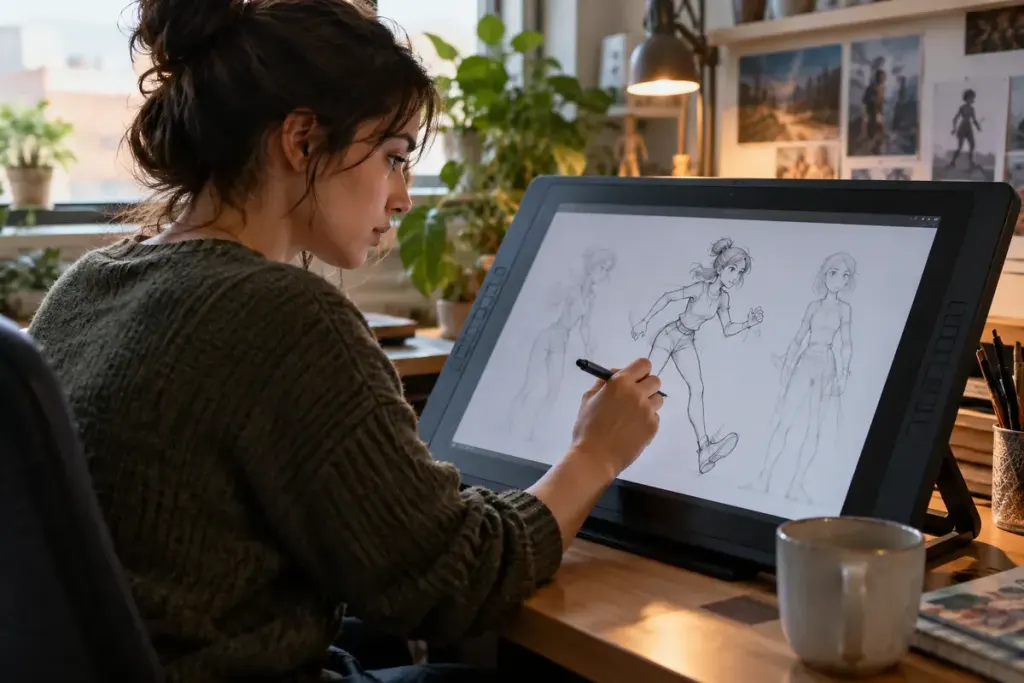
A hand moves across three drawings, but its fingertips seem to jump when the scene plays. Looking at one drawing at a time makes the cause hard to see. Onion skinning places nearby drawings behind or around the current one so their relationships can be inspected together.
The Krita manual describes these tinted views of previous and following frames. The display is an editing aid, not extra artwork intended to appear in the finished animation.
Look for spacing before adding detail
Choose a simple movement, such as a ball travelling between two positions. Turn on a small number of neighbouring drawings and compare the gaps. Even spacing suggests one kind of movement; progressively changing gaps suggest another. The timing of the frames still matters when judging the final motion.
For a character, compare a clear landmark such as the wrist or nose before becoming distracted by hair and clothing. Onion skins can reveal an accidental change in size or a drifting feature that is difficult to notice on isolated frames.
Reduce the visual clutter
Showing every nearby drawing at full strength can make the current pose harder to read. Adjust the number of visible frames, their opacity and their colours. Krita’s controls distinguish previous and following drawings, helping the animator identify which direction a shape is moving.
If the display does not appear, check the application’s layer and transparency requirements. The Krita documentation notes that fully opaque layers can prevent the expected onion-skin view. A background painted into the animation layer may be the practical issue.
After a correction, play the scene again at its intended timing. A tidy stack of overlapping drawings is not the final test. The tool helps explain the movement, while playback shows whether the expression, weight and rhythm actually work.